Adding a second monitor is the single biggest productivity upgrade you can make. Research shows it boosts output by 42%. But most people do it wrong. They buy unmatched screens, use the wrong cables, and set them at different heights.
Here is how to do it right.
The 3 Golden Rules of Dual Monitors
1. Match Your Resolution & Scale
If one screen is 4K and the other is 1080p, moving windows between them is a nightmare. The window changes size. The mouse cursor jumps. Fix: Buy identical monitors. Or, at least, match the vertical resolution (e.g., two 1440p screens).
2. Align the Centers (Ergonomics)
Do not put the bezel right in front of your face.
- Primary Screen: Directly in front of you.
- Secondary Screen: Angled to the side.
- Neck Rule: You should turn your eyes, not your head.
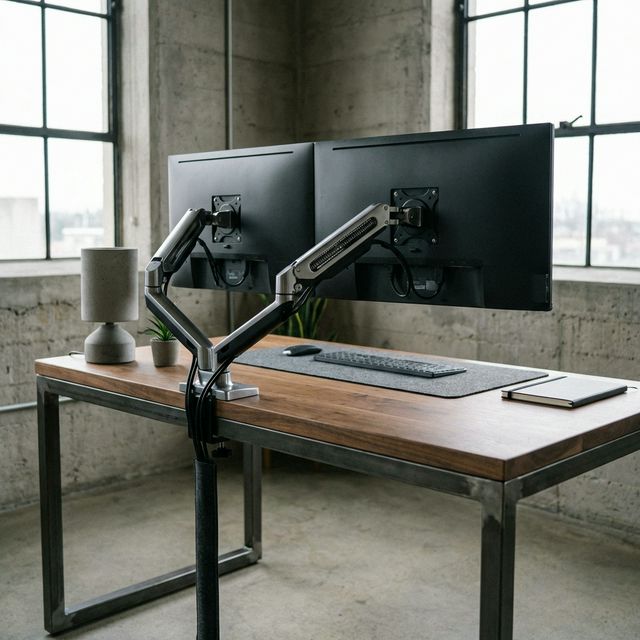
3. Use a Dual Monitor Arm
Stock stands are garbage. They take up huge amounts of desk space and are hard to align. A dual arm ($40) makes your screens float and frees up your entire desk.
Cabling: HDMI vs. DisplayPort vs. USB-C
- HDMI: Good for TV. Okay for monitors (up to 144Hz usually).
- DisplayPort: Best for PC. Supports higher refresh rates and daisy-chaining.
- USB-C / Thunderbolt: Best for Laptops. One cable does it all (Video + Data + Power).
The $400 Budget Dual Setup
You don't need to spend thousands.
Setup Checklist
- Mount the arm to the desk (grommet or clamp).
- Attach VESA plates to monitors.
- Slide monitors onto the arm.
- Cable Management: Route cables through the arm clips before plugging them in. Leave slack at the joints.
- Windows/Mac Settings: Go to Display Settings and drag the squares to match your physical layout.
Final Verdict
Stop looking at one tiny laptop screen. For $250, you can have a command center. Buy two matching 24-inch monitors and a cheap arm. It will change your life.
What we like
- Massive productivity boost
- Better ergonomics (with an arm)
- Looks professional
What could be better
- More cables to manage
- Takes up physical space