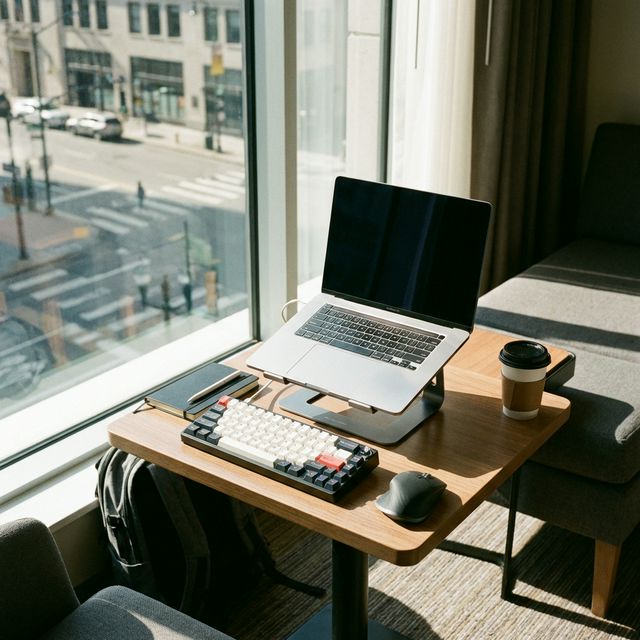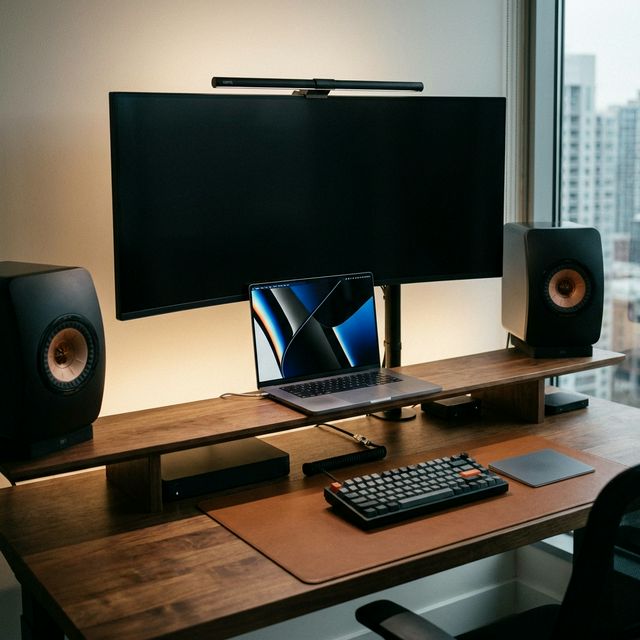
The MacBook Pro is an incredible machine, but using it hunched over on a flat desk is a recipe for neck pain and lost productivity. To unlock its full potential, you need a setup that rivals a dedicated desktop workstation.
The "One-Cable Life" is the goal: plug in a single Thunderbolt cable and have your monitor, keyboard, mouse, and charging all activate instantly.
Here is the essential gear for the perfect MacBook Pro desk setup in 2026.
The Essentials Checklist
1. CalDigit TS4 Thunderbolt 4
– The Hub
This is the heart of the setup. Do not buy a cheap $40 dongle for your $2,000 MacBook. The CalDigit TS4 is widely considered the gold standard for Apple Silicon Macs.
It provides a massive 98W of power (enough for the 16-inch Pro) and gives you 18 ports, including 2.5Gb Ethernet and super-fast SD card readers.
Why we love it: Single cable connects EVERYTHING. Rock-solid stability (no disconnects). Charges your laptop at full speed. More ports than you will ever need.
⚠️ Expert Take: The "One-Cable Life" Explained
This dock allows you to leave your charger in your bag.
- Monitor: Connect via DisplayPort.
- Internet: Connect Ethernet for gigabit speeds (WiFi is for coffee shops).
- Backups: Connect Time Machine drive permanently. Result: You sit down, plug in one Thunderbolt cable, and your entire desk wakes up. It feels like magic every time.
The Hub
CalDigit TS4 Thunderbolt 4
$399
- Thunderbolt 4
- 98W Charging
- 18 Ports
2. Dell UltraSharp U2723QE
– The Monitor
Why not the Apple Studio Display? Because the Dell U2723QE gets you 90% of the way there for 1/3 of the price.
It uses "IPS Black" technology, which gives it double the contrast ratio of standard IPS panels. The blacks are deep, colors are vibrant, and it scales perfectly with macOS.
Why we love it: IPS Black panel looks stunning. Built-in KVM switch (control 2 Macs). Fully adjustable stand. Excellent color accuracy out of the box.
The Monitor
Dell UltraSharp U2723QE
$580
- IPS Black
- USB-C Hub
- KVM Switch
3. The Interface: MX Keys & MX Master 3S
The default Apple Magic Keyboard is fine, but the Logitech MX Keys for Mac feels better to type on. It has spherically dished keys that cup your fingertips.
Pair it with the MX Master 3S, which has a frictionless scroll wheel that lets you fly through spreadsheets and code.
Why not mechanical? Mechanical keyboards are great, but for a shared home office or late-night work, the silent tactile feel of the MX Keys is often superior.
The 'Clamshell' vs. 'Dual Screen' Debate
Clamshell Mode: Laptop closed, vertical stand (like the Twelve South BookArc), using only external monitors.
- Pros: Clean desk, focused view.
- Cons: You lose the laptop screen and Touch ID.
Dual Screen: Laptop open on a stand next to your monitor.
- Pros: Two screens without buying two monitors. Touch ID accessible.
- Cons: Occupies more desk width.
We recommend Dual Screen for most people. Use the laptop for Slack/Spotify and the main 4K monitor for deep work.
Final Verdict
The 'Holy Trinity' of a MacBook Desk Setup is the CalDigit TS4, Dell UltraSharp, and MX peripherals. It's not cheap, but it transforms your laptop into a workstation that will last for 5+ years.
What we like
- One-cable simplicity
- Desktop-class ergonomics
- Apple-level aesthetic
What could be better
- Total cost ~$1,000+